
After connecting LeanLaw to QuickBooks Online, several configuration steps are needed before you can start billing. This guide walks through each section of the QuickBooks Online integration settings in sequence.
|
📋 Access integration settings: Go to Settings → QuickBooks (under Integrations in the left-hand menu). All configuration steps in this article are found within that settings page. |
Step 1: Income Account
LeanLaw needs to know which QuickBooks Online income account to post legal services revenue to when invoices sync. This is typically a Legal Fees or Professional Services income account.
- In QuickBooks Integration settings, find the Income Account section.
- Select your firm's legal services income account from the dropdown. This list is populated from your QuickBooks Online chart of accounts.
- If you don't have an appropriate account, you can create one in QuickBooks Online first (Chart of Accounts → New → Income → Legal Fees) or LeanLaw will create it for you.
Step 2: Default QuickBooks Service
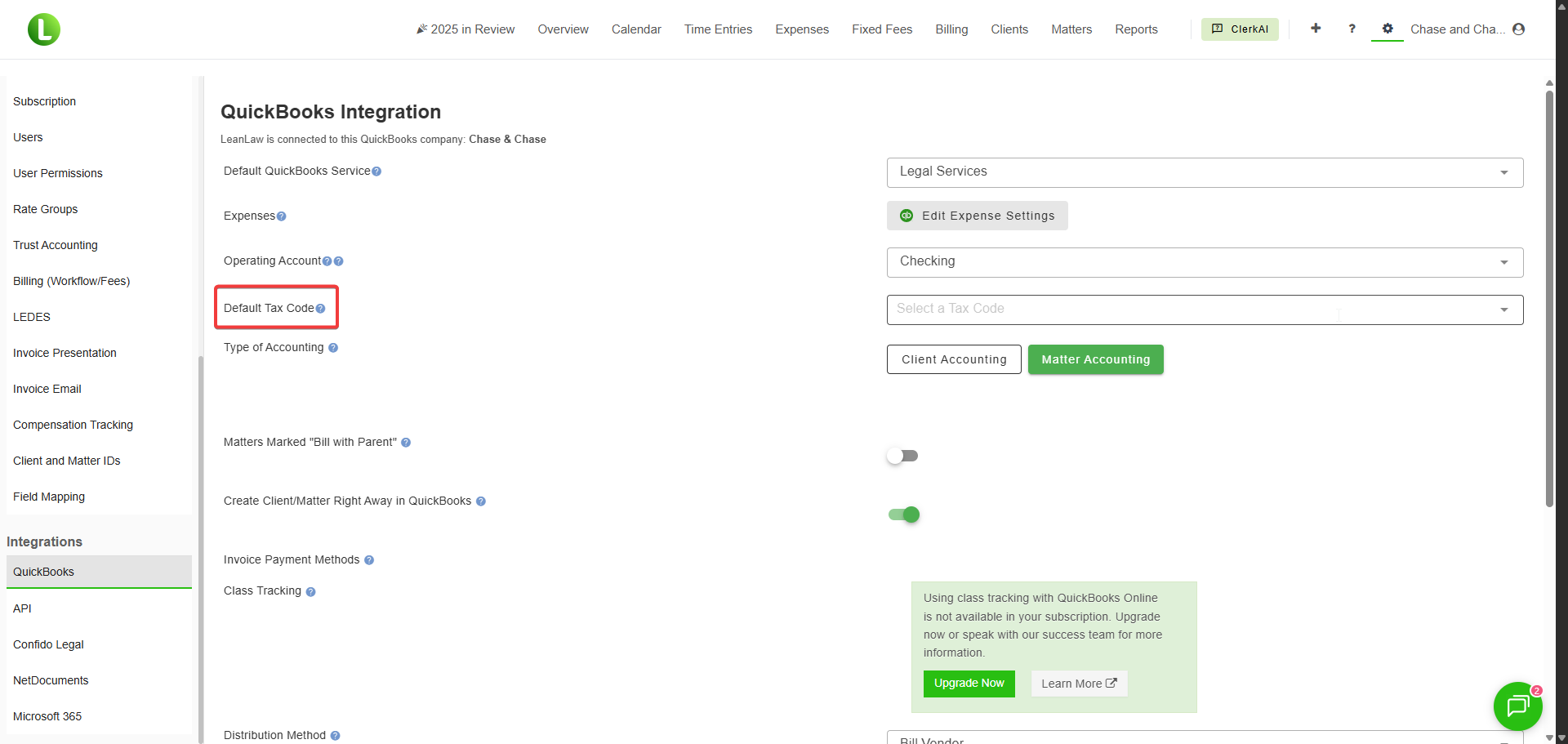
The Default QuickBooks Service is the QuickBooks Online product/service item that appears on invoice line items when they sync to QuickBooks Online. It maps your time entries to the correct income account in your general ledger.
- In QuickBooks Integration settings, find the Default QuickBooks Services section.
- Select a service from the dropdown. The list is synced from QuickBooks Online's Products and Services.
- If the desired service doesn't appear, add it in QuickBooks Online first: Settings → Products and Services → New → Service.
- Click Save Changes.
|
📋 Sales tax note: The default service also controls sales tax handling. If your state requires sales tax on legal services (e.g., Hawaii, South Dakota, New Mexico), ensure the selected service has the correct tax code assigned in QuickBooks Online. |
Step 3: Expense Settings
Configure how soft costs (created in LeanLaw) and hard costs (synced from QuickBooks Online) are handled.
- Click Edit Expense Settings in the QuickBooks Integration page.
- Choose or create accounts and product/service items for hard costs and soft costs.
- Configure whether to include vendor names in descriptions and whether to sync attachments (Pro).
- Click Done.
Step 4: Date Range for Syncing
LeanLaw can sync data from QuickBooks Online going back to a specified date. Set this carefully — syncing too far back can pull in already-billed expenses and clutter your workspace.
- Find the date range or sync start date setting.
- Set it to a date far enough back to capture all unbilled items but not so far that it imports already-billed historical data.
|
💡 Recommendation: For new integrations, set the sync date to the start of your current fiscal year or your LeanLaw go-live date. For firms migrating from another system, work with your accountant to determine the right starting point. |
Step 5: Class Tracking (Optional)
If your firm uses QuickBooks Online class tracking for reporting by attorney or practice group, configure it here.